


Bound fields
A text that shows a code in the placeholder print becomes a data field; a mix of codes and literal text becomes an expression such as [Article] + "-" + [Lot] or Left([Article], 3).
zplCore Capture · MigrationOn request
Print your existing labels from NiceLabel, BarTender, TEKLYNX or any other Windows program on the printer “zplCore Capture” and get a zplCore JSON template: fields bound to your data, native barcodes, placement as printed. Only the print job is read – no label files, no vendor formats.
Use your own licensed installation and your own labels, and observe the licence terms of your program. Legal notes
 zplCore Capture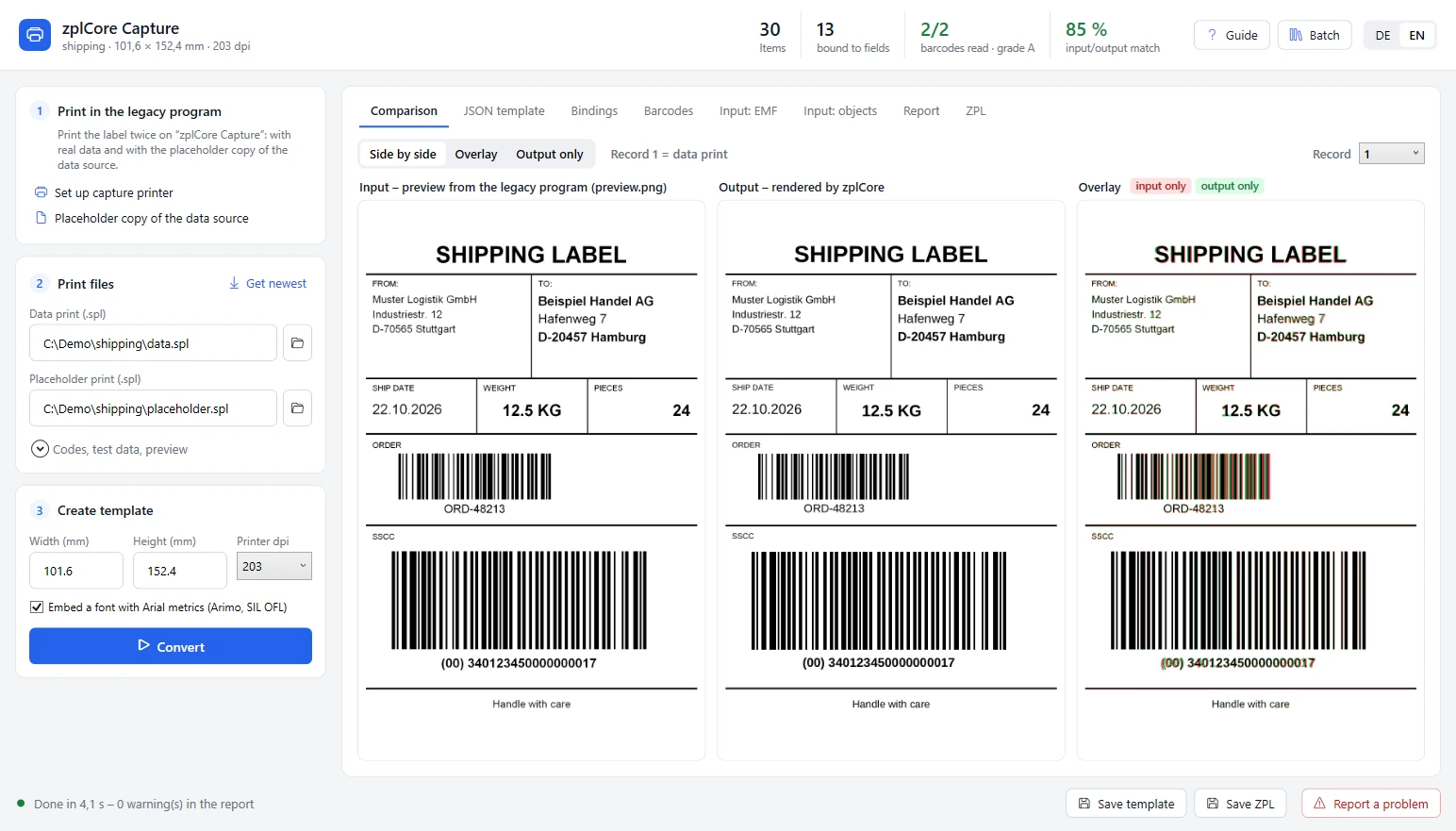
How it works
zplCore Capture does not read the label file but what your program sends to a printer. That is why it works with every program that can print to a normal Windows printer.

Print the label in your program as usual, but on the printer “zplCore Capture” (driver Generic / Text Only). It prints nothing on paper and keeps the print job. In the app's “Input: EMF” tab texts look spaced out (fixed character widths of this driver) – content, font and position are still complete.

zplCore Capture copies your Excel or CSV data source; in the copy, the first record holds a short code instead of each value (XQ01, Q10, numbers of the same length, so check digits stay valid). Print the label once more with the copy. Values typed in at print time? Type codes instead.
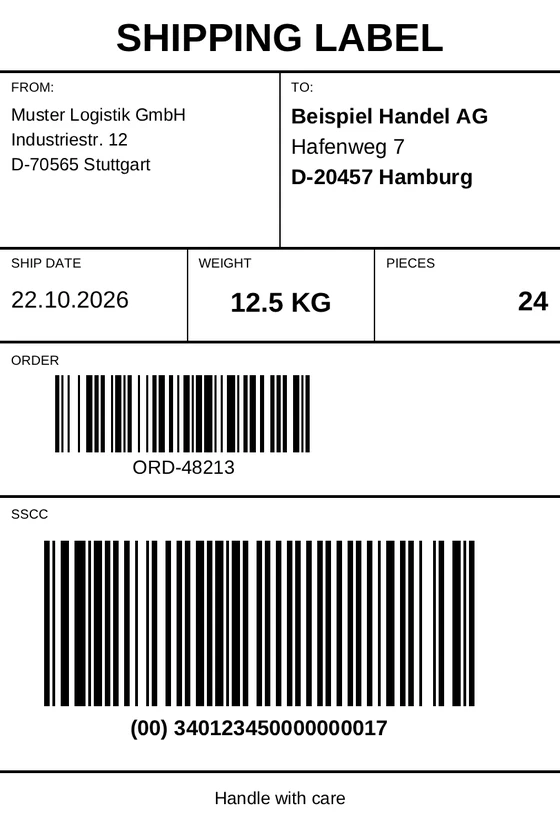
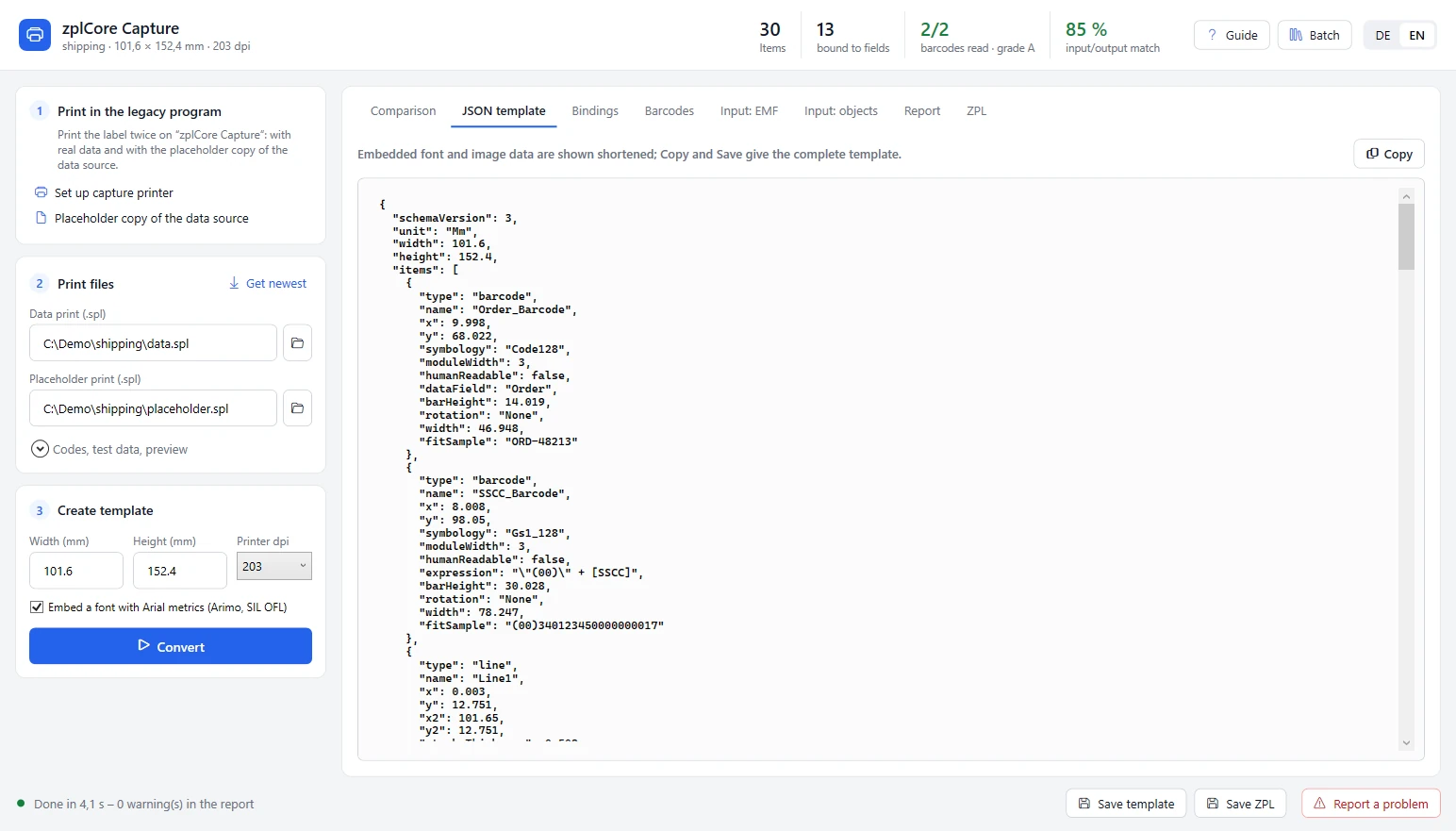
Comparing both prints shows which text comes from which field. The result is a JSON template for the zplCore SDK and zplCloud, with bound fields, native barcodes and expressions:
{ "type": "barcode",
  "symbology": "Gs1_128",
"expression": "\"(00)\" + [SSCC]" }Result
Drag the slider: on the left the preview of the original print, on the right the label that zplCore renders from the generated template – printer-ready ZPL at 203, 300 or 600 dpi.
"(00) " + [SSCC], the ship date Format(Today(), "dd.MM.yyyy").
The app
zplCore Capture sets up the capture printer, takes the two print jobs, converts and shows input and output side by side – with an overlay, a scan check of every barcode, the bindings and the finished template.
zplCore CapturezplCore Capture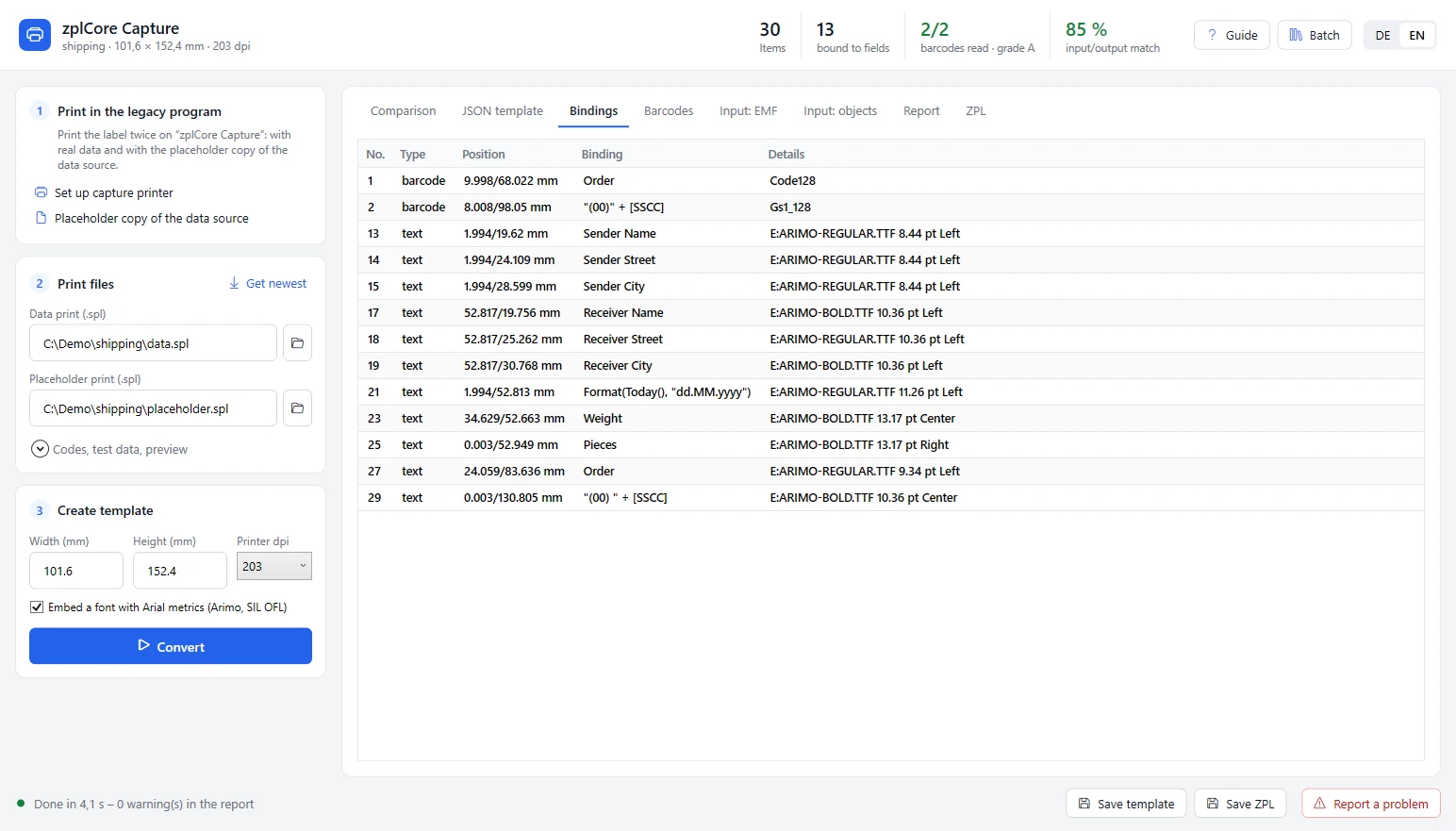 zplCore Capture
 Guide – taking over labels from other programs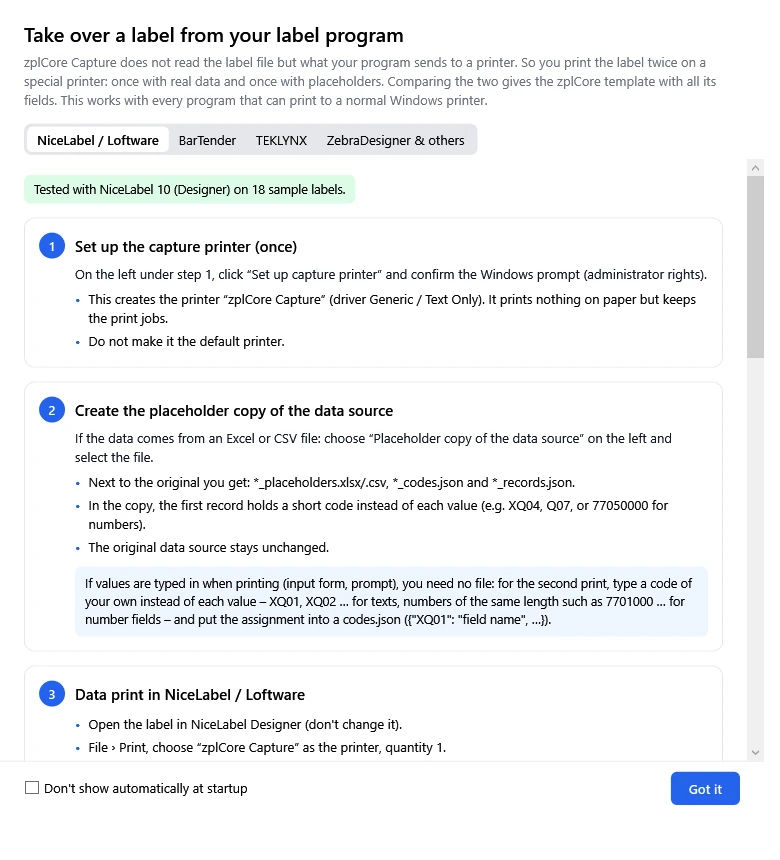
What is taken over
The result is an editable template, not a bitmap: every text, line and barcode becomes its own item.
A text that shows a code in the placeholder print becomes a data field; a mix of codes and literal text becomes an expression such as [Article] + "-" + [Lot] or Left([Article], 3).
Bar patterns are decoded and become real barcode items with box fit, independent of the printer resolution; GS1 data becomes "(01)" + [GTIN] + …, Code 39 Full ASCII and mod 43 are detected.
Dates that are equal in both prints become relative to the print day, also inside a text and in GS1 AI 11–17 or HIBC; check characters become Mod43(…) or GS1 check digits.
Font, size, bold, italic, underline, rotation and condensed width; alignment from where both prints start and end (left, right, centred, centred in a table cell). Text printed as bitmaps is read with Windows OCR.
Lines, boxes and shapes stay vector items, lines placed on their stroke edge; logos, symbols and fixed rich text blocks are taken over 1:1 as images.
With a preview picture (the program's own preview, a screenshot or a scan) the label origin is found exactly and single texts move to where the preview shows them; too long texts wrap or shrink.
Arimo (SIL OFL 1.1, metric-compatible with Arial) is embedded in the template, so the label keeps its line breaks on the printer.
Convert a whole folder of captured labels at once, see items, bindings, barcodes and match per label and open each one for checking.
Something off? The app builds a ticket with images, template and ZPL and opens it as an e-mail draft – nothing is sent until you click Send. Print files only if you choose to attach them.
Programs
If a program can print to a normal Windows printer, its labels can be captured. The app's guide has the steps for each program.
Tested with NiceLabel 10 (Designer) on 18 sample labels. Condensed fonts, text boxes with fitting and GS1 barcodes with check digit are recognised.
The procedure is the same; menu names may differ by version. Printer fonts of the driver are replaced by a Windows font, printer barcodes arrive as graphics and are recognised as usual.
The procedure is the same; menu names may differ by product and version. Counters and formulas are taken over as fixed values or recognised parts.
Print to a file with the Zebra driver and import the ZPL into zplCore/zplCloud – texts, barcodes and graphics are taken over as items.
Loftware Spectrum, NiceLabel Cloud and automation services: works if a Windows printer “zplCore Capture” can be chosen as the target; otherwise via the ZPL output of a Zebra driver.
cab cablabel S3, Brady Workstation, Avery, Word/Excel mail merge and others: printer “zplCore Capture”, one data print and one placeholder print. Programs that only send to their own printer models go the ZPL route.
NiceLabel, Loftware, Loftware Spectrum, BarTender, TEKLYNX, CODESOFT, LABELVIEW, LABEL MATRIX, ZebraDesigner, cablabel, Brady Workstation, Avery, Microsoft Word and Excel are trademarks or registered trademarks of their respective owners. They are named only to describe compatibility; zplCore.com is not affiliated with, endorsed by or sponsored by these companies.
Legal notes
Use your own licensed installation and your own labels. zplCore Capture only reads print jobs that you create yourself on your computer – no label files and no parts of the vendor's program. Please observe the licence terms of your program: some licences (e.g. single-user editions) restrict printing for other systems or use for a system migration. If in doubt, have the licence terms checked.
The same note is shown in the app's guide.
zplCore Capture never opens, decrypts or rebuilds the files of a label program and does not analyse vendor file formats. It reads only the print job (the spool file of the capture printer).
Print jobs, data and templates stay on your Windows computer. A problem ticket is only an e-mail draft that you send yourself; the spool files contain the printed label data – only attach them if this data may be passed on.
The screenshots and pictures show our own demo label with fictitious data, drawn and printed by us. They contain no labels, samples or output of a third-party label program.
Names of third-party programs are trademarks of their owners and are used only descriptively (see above). These notes are not legal advice.
FAQ
No. zplCore Capture is not offered for download. We provide it on request – write to us which program you use and roughly how many labels you want to migrate.
No. It reads only the print job that your program sends to the printer “zplCore Capture” on your computer. Label files and the program of the vendor are never opened, decrypted or rebuilt.
That depends on the licence terms of your label program. Some licences (e.g. single-user editions) restrict printing for other systems or use for a system migration. Use your own licensed installation and your own labels and, if in doubt, have the licence terms checked.
Every program that can print to a normal Windows printer. Tested with NiceLabel 10 (Designer) on 18 sample labels; BarTender, TEKLYNX and others follow the same procedure but are not tested yet. Programs that only print to Zebra drivers (e.g. ZebraDesigner) go through a ZPL file and the ZPL import.
Yes. For the second print, type a code of your own instead of each value – XQ01, XQ02 … for texts, numbers of the same length for number fields – and put the assignment into a codes.json.
Fields that the program fills by script or formula are taken over as fixed text or as a recognised part (Left/Mid); serial numbers and counters as fixed values. Check them in the “Bindings” tab and add counters in the template.
If the program reports an invalid value for the placeholder print, the label checks that field (format, length, check digit). Keep the original value for this field: it is taken over as fixed text and can be bound later.
A zplCore JSON template per label (loads with Label.FromJson in the zplCore SDK and in zplCloud) and, if you like, the ZPL. Fonts, sizes and positions follow the original; printer fonts that do not exist on the capture printer are replaced by Windows fonts and can be changed in the template.
Migration
Tell us which label program you use and how many labels you have. We will get back to you about zplCore Capture and the migration.
zplCore Capture is not available for download; we provide it on request. Use your own licensed installation and your own labels and observe the licence terms of your program.